I Won the Grand Prize at the MFG GPU Programming Contest 2025
MFG Challenge is a contest for creating image filters with a GPU programming language. I had touched GPU programming before, but starting from a new language was still challenging. This article focuses on the filter I made and the ideas behind it.
Introduction
I received the Grand Prize in the MFG GPU Programming Contest 2025 for a watercolor-style image filter.
The contest results are available on the official MFG site. I am grateful that my work was selected, especially because the other submissions were also very strong.
After LLMView received an award in the U-22 Programming Contest, it was encouraging to be recognized again in an area I care about: GPU programming and visual expression.
What Is the MFG GPU Contest?
The contest uses MFG (Modern Filter Language for GPU), a language for developing image filters. Because it is designed for paint tools, the demo images in MFG Studio include illustrations as well as photos. Looking back, it might have been interesting to create a filter aimed more directly at illustration.
MFG feels different from GLSL or HLSL. It lets you write filters without thinking too directly about every low-level GPU detail. Still, performance matters. In my filter, computing variance naively would become expensive, so I paid attention to reducing overhead.
Winning Work: Watercolor Filter
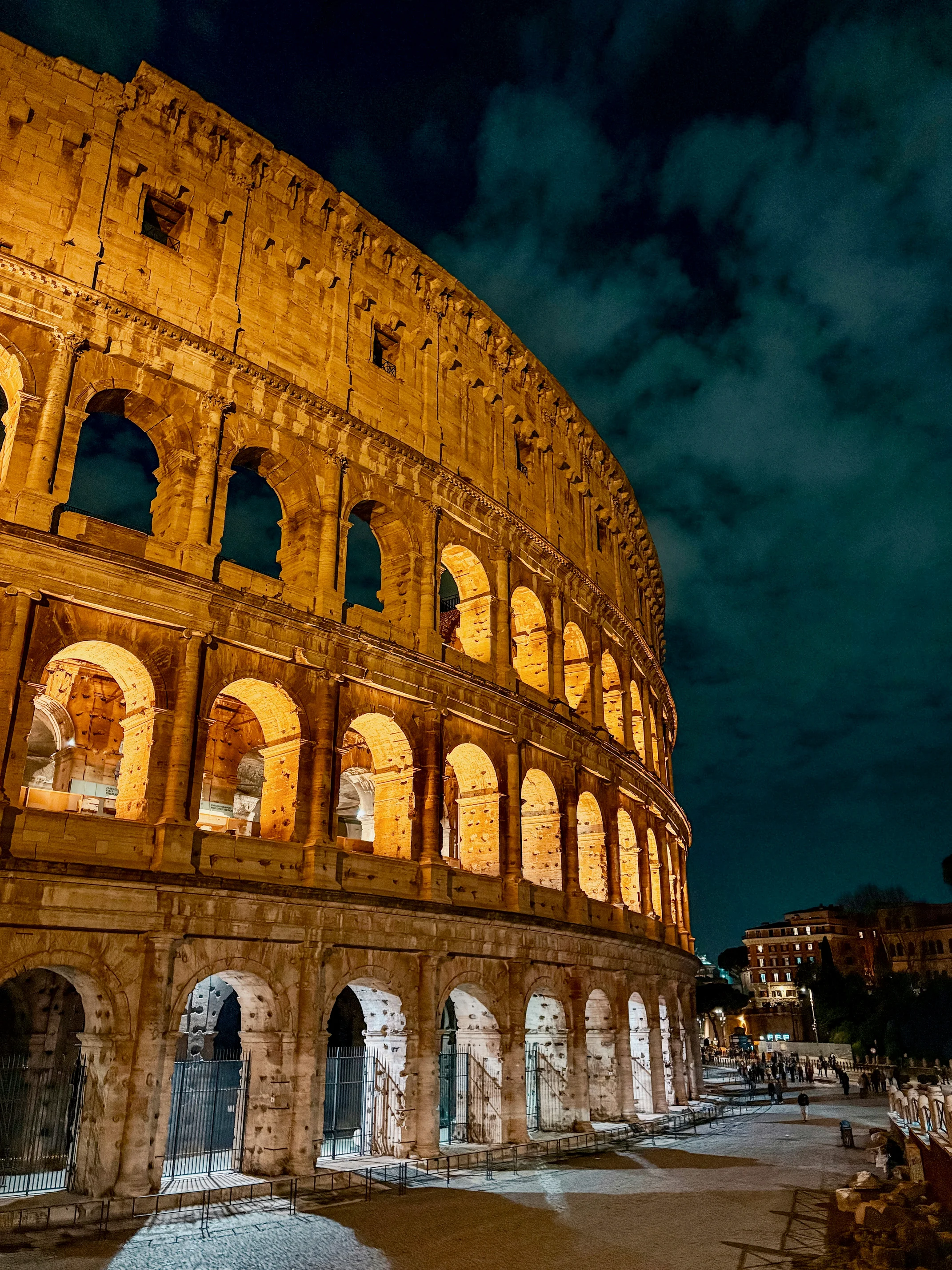
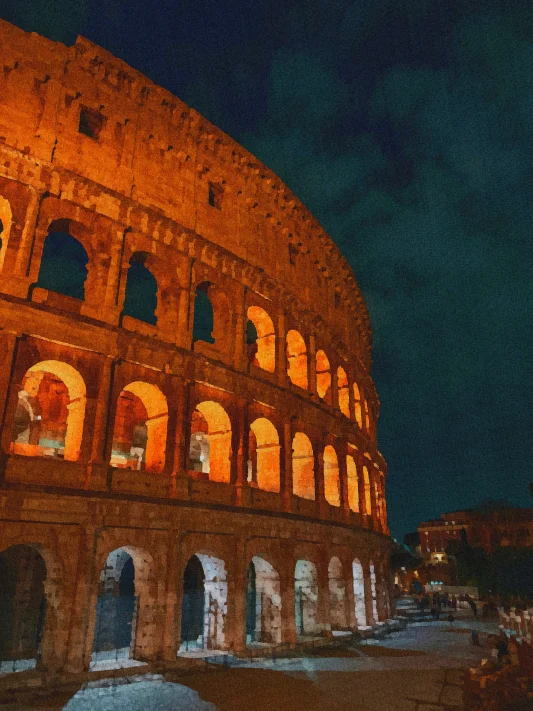
I created a filter that converts input images into a watercolor-like style.
I enjoy visiting museums, and I especially like early Impressionist works by Monet. Turner is also one of my favorites. In that period, landscapes were not just accurate records of scenery; they carried atmosphere, emotion, and the painter’s response to the scene.
That idea is interesting from an information perspective too: what does it mean to add emotional texture to image data?
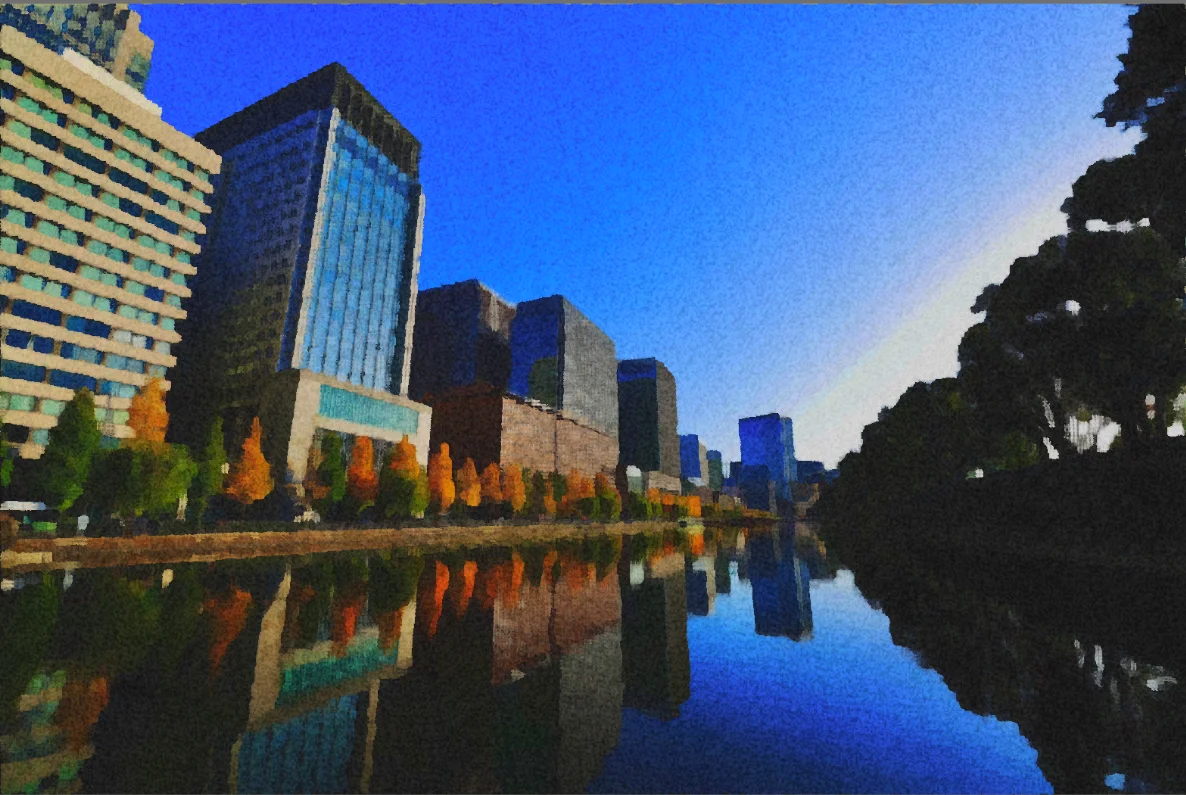
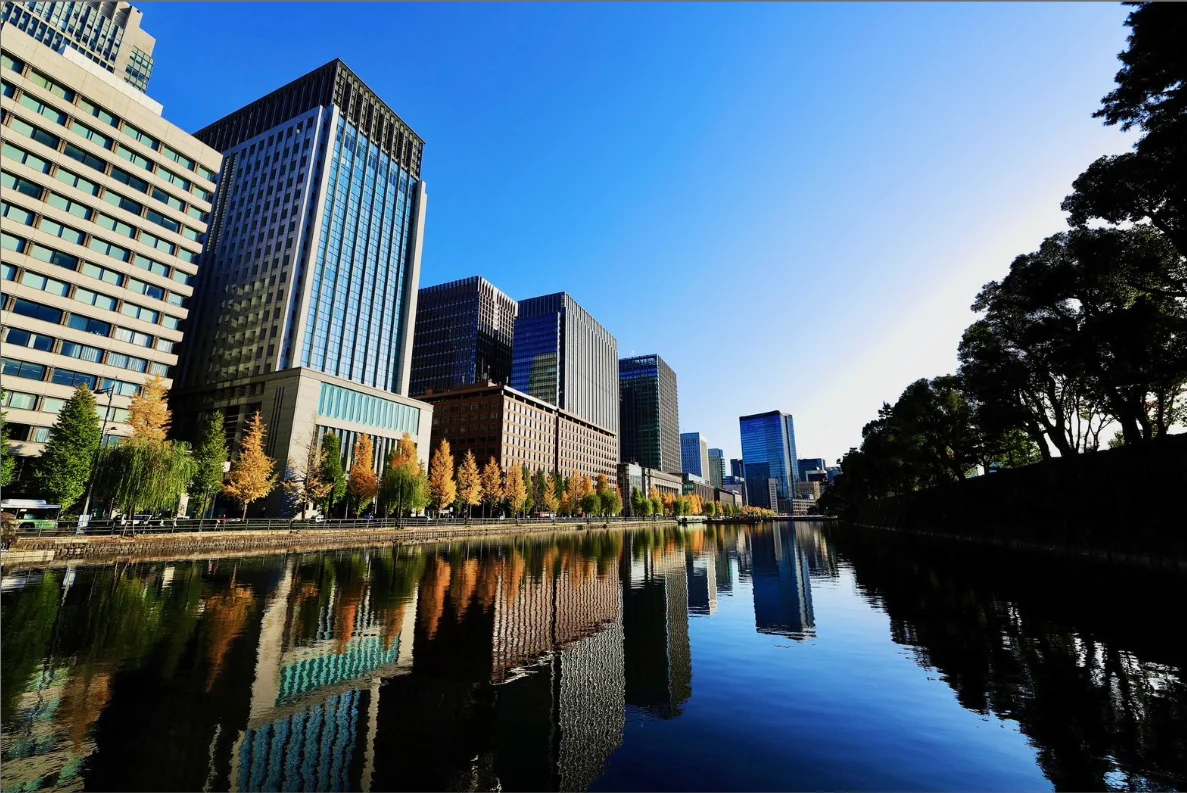
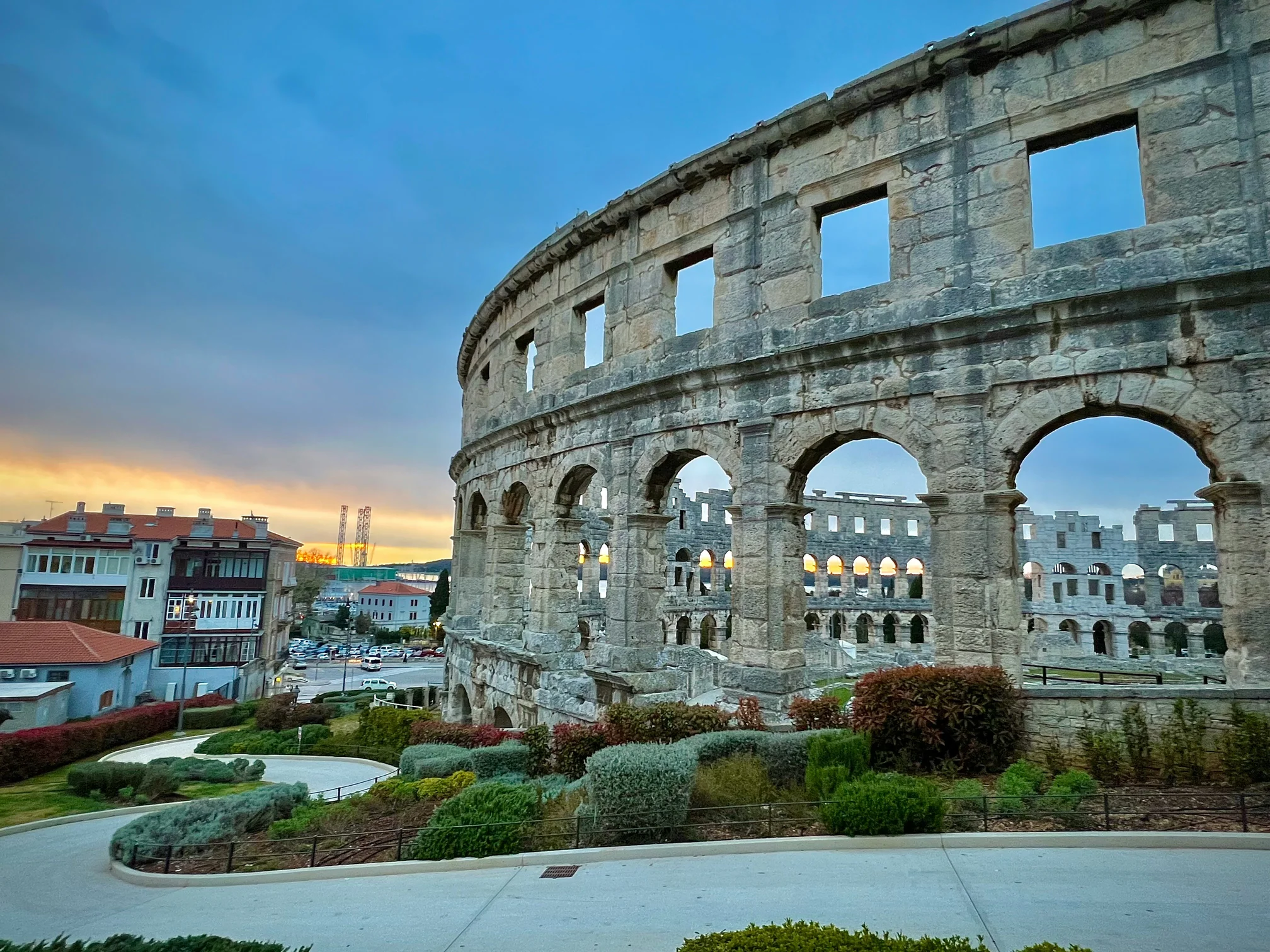
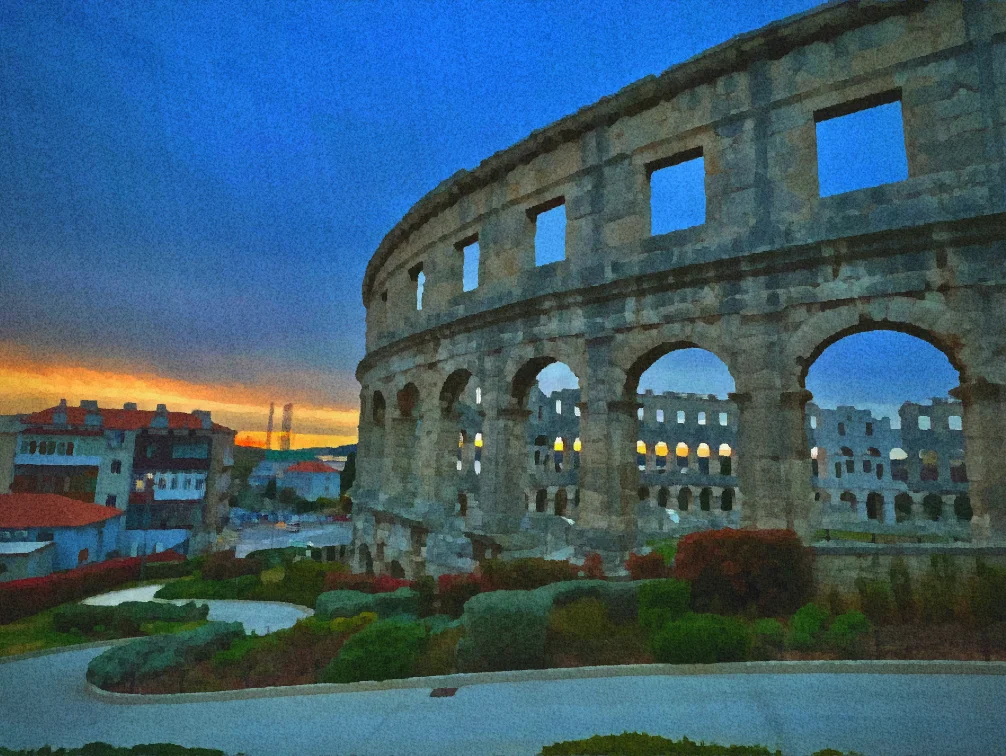
The filter result looks like this. The first pair uses an image included with MFG Studio, and the others use Unsplash photos.
Technical Features
The core algorithm is based on the Kuwahara filter.
Ordinary Gaussian blur smooths the whole image, including edges. A Kuwahara filter divides the neighborhood into regions, computes statistics for each region, and uses the average color of the region with the smallest variance. This preserves edges while creating a painterly smoothing effect.
That variance computation runs many times, so even small inefficiencies become noticeable. Reducing that cost was one important part of the implementation.
MFG Implementation
MFG made it possible to describe the filter compactly while keeping the computation on the GPU. The main pipeline is:
- convert color into a perceptual color space,
- apply edge-preserving smoothing,
- simulate pigment and paper effects,
- add texture and bleed-like distortion.
Physical Watercolor Simulation
I did not want the result to look like a simple blur. I tried to encode parts of how watercolor behaves: light, pigment, paper, and uneven absorption.
1. Oklab Color Space
The internal processing uses Oklab, a perceptual color space. This helps avoid muddy interpolation and keeps brightness transitions more natural.
2. Beer-Lambert-Like Transmittance
Watercolor is not just opaque color painted on top of an image. Light passes through pigment, interacts with the paper, and returns to the viewer.
I used a transmittance-style calculation inspired by the Beer-Lambert law:
T = exp(-absorbance * density)This creates a feeling closer to pigment layers rather than a flat color overlay.
3. Paper Texture and Domain Warping
Watercolor spreads unevenly because paper is not uniform. I used noise and domain warping to create small distortions and bleeding around color boundaries.
4. Brush-Like Extraction with Kuwahara Filtering
The Kuwahara filter provides the broad painterly structure: flat regions become smooth, while edges remain readable. This balance is important because a watercolor-like image still needs recognizable forms.
Granularity from Paper Microstructure
I also adjusted the parameters so that flatter regions produce smoother gradients, while darker or lower areas show a more granular texture.
In simplified form:
d ∝ (1.0 - h)^2This helps the image avoid looking like a uniform blur. Smooth areas, valleys, and edges each get different texture behavior.
Related items
-
I Became a Swift Student Challenge 2026 Winner
I was selected as a Winner in Apple's Swift Student Challenge 2026. This article summarizes the submitted app, what I focused on while developing it, how I approached Apple's evaluation criteria, and advice for future applicants. -

Making an SVG Icon with TeX and TikZ
I could not decide what favicon to use for this site, then realized I could make one with TikZ, a tool I already use often. This is a memo on the process of drawing the icon and exporting it as SVG.